
Quick answer: To install Yuzu on Windows 11 or Windows 10, use an archived Windows build you trust, extract it if needed, add your own prod.keys, install Nintendo Switch firmware only when a game or system feature requires it, add your game folder, and then test the game with basic graphics settings.
The original Yuzu project ended in March 2024, so there is no new official 2026 release. This guide focuses on a clean Windows setup and separates emulator files, keys, firmware, game files, and graphics settings so each problem is easier to diagnose.
The original Yuzu Quickstart Guide published hardware guidance for Windows. These are archived Yuzu requirements, not a promise that every game will run well on the same hardware in 2026.
| Part | Archived minimum | Archived recommended |
|---|---|---|
| Windows | Up-to-date Windows 10 | Windows 11 offers similar performance |
| CPU | Intel Core i5-4430 / AMD Ryzen 3 1200 | Intel Core i5-11400 / AMD Ryzen 5 3600 |
| Dedicated GPU | NVIDIA GT 1050 4GB / AMD RX 550 4GB | NVIDIA GTX 1660 6GB / AMD RX 5500 8GB |
| RAM | 8GB with a dedicated GPU; 12GB with integrated graphics | 16GB |
| Graphics API | OpenGL 4.6 or Vulkan 1.1 compatible hardware and drivers | |
The archived guide also recommends a CPU with the FMA instruction set and six or more threads. Integrated graphics can work on supported hardware, but Yuzu’s own documentation warned that iGPU performance may be much lower than a dedicated GPU.
Prepare these items before you start:
For legal and safety context, see our Yuzu legal and safety guide.
Use the Windows package you already trust, or read our Yuzu download page for the archive currently offered on this site. Do not treat a file labeled “2026” as proof that it is an official Yuzu release. The upstream project stopped in 2024.
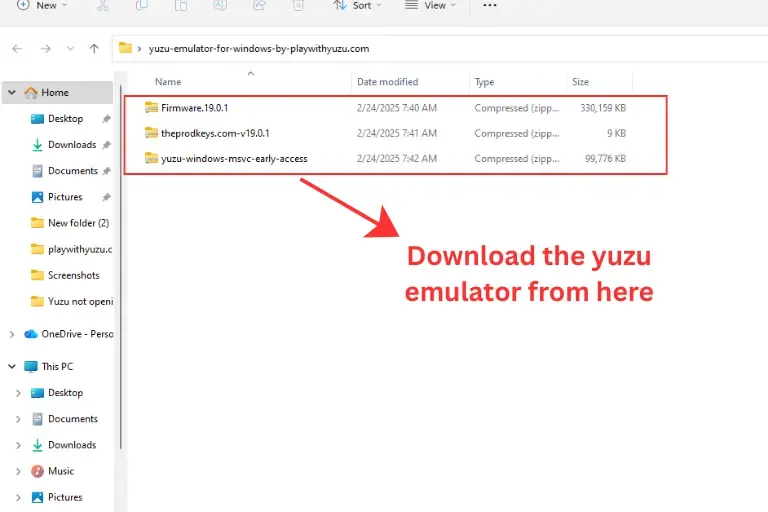
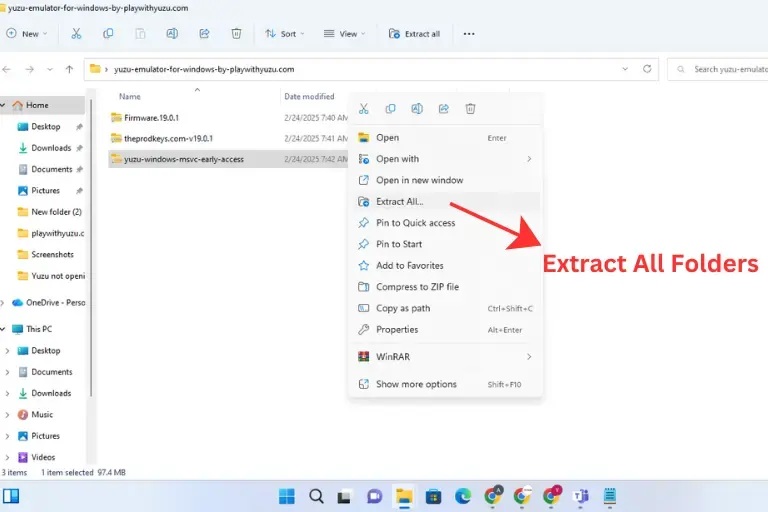
If your Windows build is packaged as a ZIP file, right-click it and choose Extract All. Put the extracted folder somewhere easy to find, such as C:\Games\Yuzu. Do not run the emulator from inside the compressed ZIP.
Open the extracted folder and start the Yuzu executable included with that build. Different archived packages can use different filenames or folder layouts, so this guide does not invent a universal setup.exe step.
Once Yuzu opens, the important setup areas are the emulator data folder, decryption keys, firmware, and game directory.
Yuzu needs decryption keys for supported Nintendo Switch content. Use keys dumped from hardware you own.
In the Yuzu Early Access 4156 build verified for our firmware guide, the menu contains:
Tools → Install Decryption Keys
After the keys were installed, Yuzu displayed “Decryption Keys were successfully installed”. The same tested build asked for a restart before firmware installation.
The archived Yuzu Quickstart also documents the manual data-folder method:
File → Open yuzu Folder.keys folder.prod.keys there.For the full keys workflow and key-specific errors, use our Yuzu Prod Keys guide.
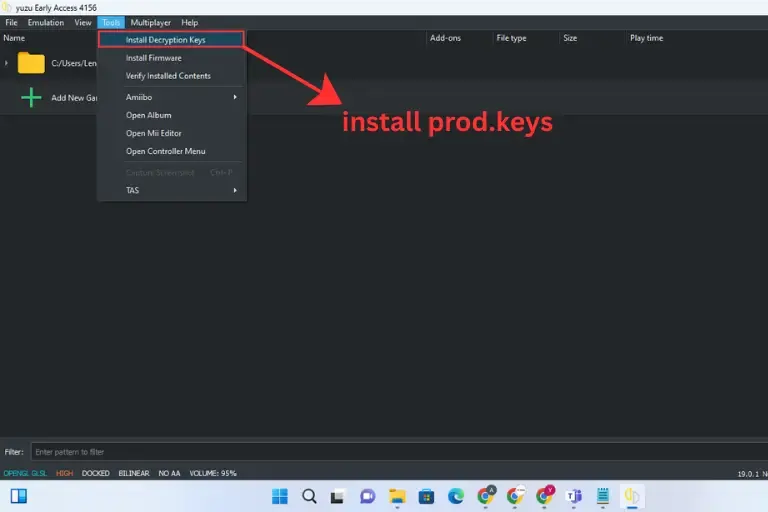
Firmware and prod.keys are different. Keys handle decryption; firmware provides Nintendo Switch system files used by some games and system features.
In the EA 4156 build we verified, use:
Tools → Install Firmware
If decryption keys are missing, EA 4156 shows this warning: “Install decryption keys and restart yuzu before attempting to install firmware.”
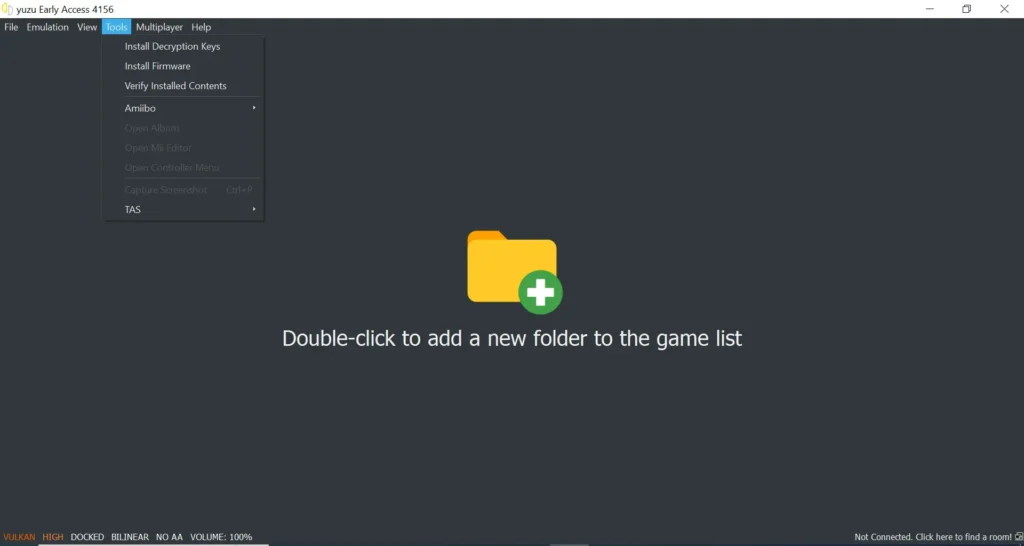
Use firmware dumped from your own Switch. For the exact verified EA 4156 workflow, NAND location, update process, and installation checks, see the Yuzu Firmware Installation & Update Guide.
The archived Yuzu Quickstart says you can double-click the main emulator window to add a game folder. Select the folder that contains your own prepared game dumps, then Yuzu should list the games it can recognize.
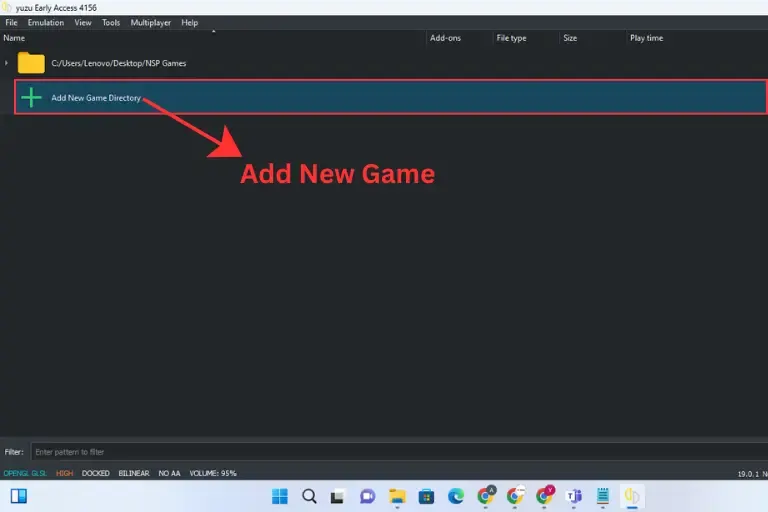
If a dump is split into parts, Yuzu may not recognize it until the parts are merged into a complete file. The archived Quickstart documents this for split XCI and NSP dumps.
Game updates and DLC are separate from firmware. The archived desktop workflow uses File → Install Files to NAND… for supported update or DLC NSP files. Do not use that menu as a substitute for the dedicated Tools → Install Firmware command in EA 4156.

Do not judge the whole setup from one black screen. Check each layer separately:
nand/system/Contents/registered/.EA 4156 also has Tools → Verify Installed Contents. In our verified setup, it returned “Integrity verification succeeded!”. Treat that as an installed-content integrity check, not a firmware-version checker.
There is no single graphics preset that is best for every game or GPU. Start with conservative settings and change one item at a time.
Avoid rules such as “Vulkan is always best” or “High accuracy is always bad.” Results depend on the game, GPU, driver, and Yuzu build.
Check whether the game dump is recognized, then check prod.keys, required firmware, the graphics API, and the game’s known compatibility. A black screen does not automatically mean the firmware is wrong.
In EA 4156, install the decryption keys first, restart Yuzu, then run Tools → Install Firmware.
Confirm that you selected the folder containing the game files. Split XCI/NSP dumps may need to be merged before Yuzu can recognize them.
First compare your hardware with the archived Yuzu requirements. Then start at 1x resolution, close heavy background tasks, use a current GPU driver, and test Vulkan versus OpenGL. Do not promise a fixed FPS because results vary by title and hardware.
Test the other graphics API, reset unusual per-game settings, check the game dump, and compare the title with our Yuzu compatibility guide.
Use our Yuzu Games Not Opening guide for a symptom-based checklist.
Yuzu’s original development stopped in March 2024. That changes how a Windows install guide should be written in 2026: there is no “latest official Yuzu version,” no active upstream support channel, and no reason to claim that compatibility is still improving through official Yuzu updates.
An archived build can still work for games it already supported, but newer Windows, drivers, firmware, or games can introduce issues that the original Yuzu team will not fix.
If you want to compare the archived Windows experience with another emulator, see Yuzu vs Ryujinx.
Start with a trusted archived Windows build, extract it if needed, launch Yuzu, add your own prod.keys, install your own Nintendo Switch firmware when required, then add the folder that contains your own game dumps.
If the build comes as a ZIP package, extract it first and launch the Yuzu executable from the extracted folder. Archived builds can use different filenames, so there is no single installer name that applies to every copy.
Archived Yuzu builds can run on Windows 11 on compatible hardware. The original Yuzu requirements said Windows 11 offers similar performance to an up-to-date Windows 10 system.
No. The original project ended in March 2024. A build hosted in 2026 is an archive or third-party or community-hosted copy, not a new official upstream release.
Yuzu uses decryption keys for supported Nintendo Switch content. Use keys dumped from hardware you own and keep key troubleshooting separate from firmware troubleshooting.
No single rule applies to every title. Some games and system functions need Nintendo Switch system files. Install firmware when the game or feature requires it instead of treating firmware as a universal fix.
The easiest way to reach the active Yuzu data folder is File → Open yuzu Folder. In the EA 4156 setup verified on this site, firmware content was installed under nand/system/Contents/registered/.
Yuzu can work with supported Switch game dumps prepared in formats such as XCI and NSP. The archived Quickstart notes that split dumps must be merged before Yuzu can recognize them.

PlayWithYuzu.com is your complete guide to installing, configuring, and optimizing the Yuzu Emulator. Find tutorials, fixes, game compatibility lists, and performance tips for Android, PC, and Linux.
Take a 30-second AI compatibility test — find out if your device is ready for Nintendo Switch emulation!
🎮 Is your device ready for Yuzu? Take the free 30-second scan!