
Last updated: September 12, 2026
Learn what Yuzu firmware does, when you need it, how to install it on Windows, where the files go, how to verify the setup, and what to check when firmware is not recognized.
Yuzu firmware contains Nintendo Switch system files that some games and system features need inside the emulator. It is separate from prod.keys, which provide the decryption keys Yuzu uses for supported Switch content.
First-hand verified on Yuzu Early Access 4156.
Source-based; exact interface can vary by build.
nand/system/Contents/registered/
Yuzu firmware is a collection of system files taken from Nintendo Switch firmware. Some games rely on these files for Switch system functions that are not included directly in the emulator.
The archived Yuzu Quickstart Guide documents firmware as a collection of .nca files dumped from a user’s Switch. Those files are then placed inside Yuzu’s emulated NAND. The same documentation notes that some games need Switch system firmware files to work correctly.
Firmware is not the Yuzu application itself. Installing or replacing system files does not update the emulator.
Not every game needs the same system files. The original Yuzu documentation gives Mario Kart 8 Deluxe as one example of a game that requires system files from Nintendo Switch firmware.
The practical rule is simple: install firmware when the game or feature you are using needs those system files. Do not treat firmware as a universal fix for every crash, black screen, or performance problem.
Nintendo Switch system files that provide system components used by some games and applets.
prod.keysDecryption keys from a Switch that let Yuzu decrypt supported Switch content.
Yuzu’s emulated system storage where installed system content is stored.
The archived Yuzu setup documentation places keys in the keys folder and firmware inside the emulated NAND. They are not interchangeable.
On Yuzu Early Access 4156, selecting Tools > Install Firmware without installed decryption keys shows a warning telling the user to install decryption keys and restart Yuzu first.
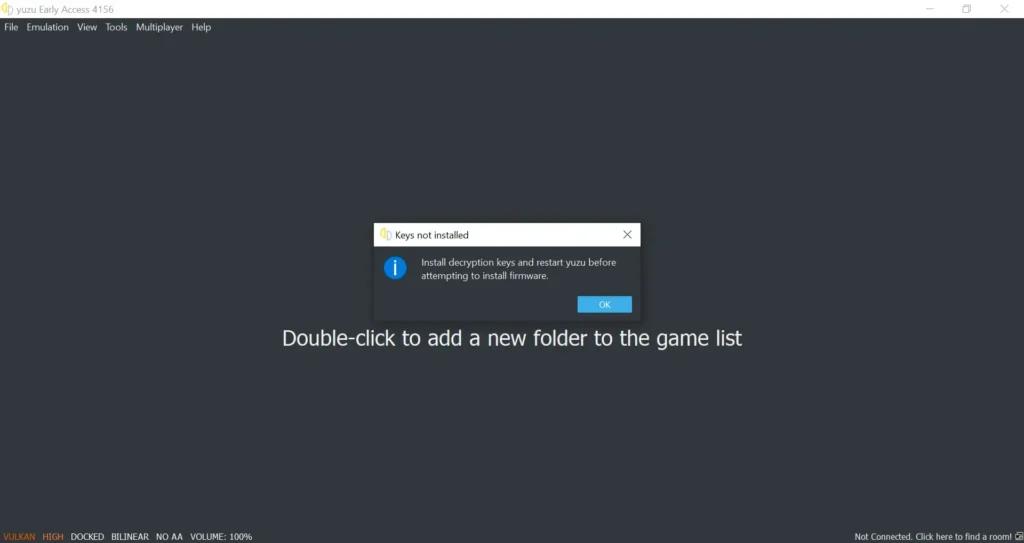
If your error specifically refers to keys or decryption, fix the keys first. See the Yuzu Prod Keys guide.
The archived Yuzu guide stores a firmware dump under sdcard:/tegraexplorer/Firmware/<firmware version>/. The resulting dump contains multiple .nca files.
The steps below were verified using Yuzu Early Access 4156. Other archived or community builds may use different menu wording.
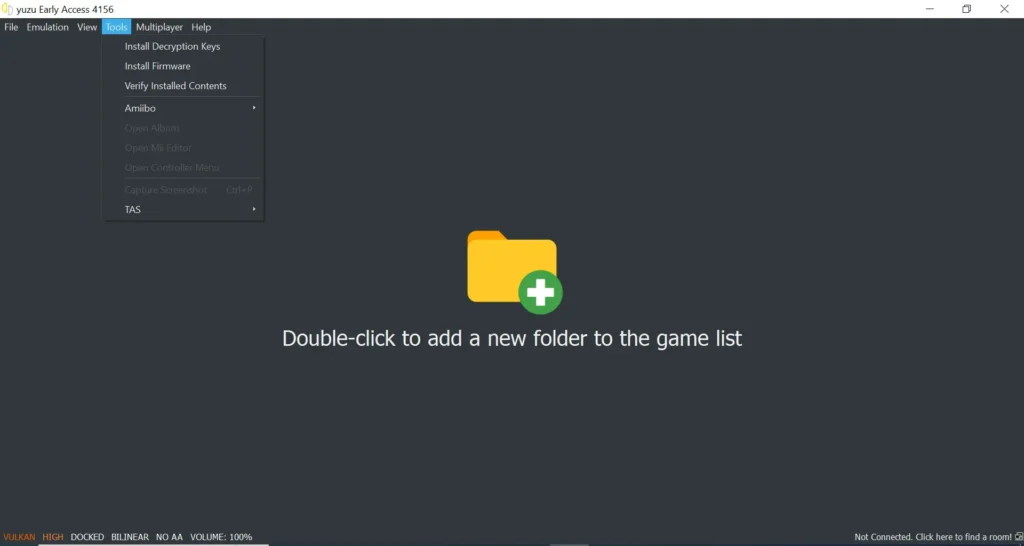
Open Tools > Install Decryption Keys, select the keys prepared for your setup, then restart Yuzu after the successful installation message.
After restarting Yuzu, open Tools > Install Firmware and select the firmware package prepared for your setup.
Yuzu opens an Installing Firmware... progress window. Leave the emulator open until the progress completes.
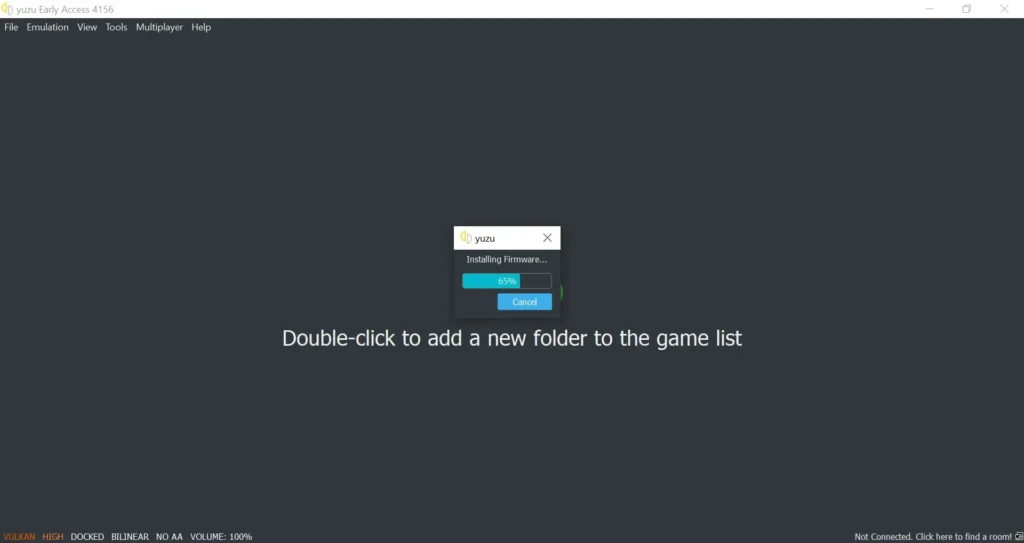
In the EA 4156 workflow verified for this guide, the progress window closed when installation finished. No separate firmware-success popup appeared afterward.
Close and reopen the emulator after installation. EA 4156 also contains File > Install Files to NAND..., but firmware has its own dedicated Tools > Install Firmware command in this build.
Android uses a different storage model from Windows. The original Yuzu Android documentation places its application data under:
The same documentation notes that newer Android versions can restrict access to application folders.
The Windows workflow above is first-hand verified on EA 4156. The Android section is source-based because the exact PlayWithYuzu Android interface has not been verified in this article. Do not copy the Windows menu path to Android unless your build actually provides it.
On desktop Yuzu, installed firmware is stored inside the emulator’s NAND. In our EA 4156 installation, the files were placed under:
The Yuzu-relative path is nand/system/Contents/registered/. After installation, the folder contained multiple .nca and .cnmt.nca files.
EA 4156 does not show a separate success message after the firmware installation progress finishes. The idle main screen we checked also did not display an installed firmware version in its bottom status bar.
First, confirm that firmware files exist under nand/system/Contents/registered/. EA 4156 also provides Tools > Verify Installed Contents. In the verified setup, the check returned Integrity verification succeeded! followed by The operation completed successfully.
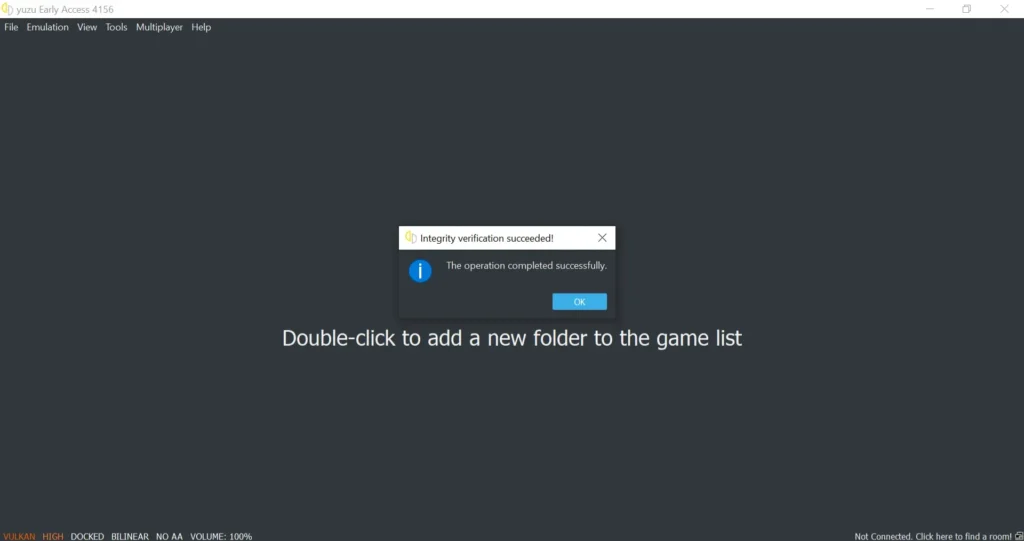
Treat this as an installed-content integrity check, not specifically as a firmware-version checker. The final practical check is to retry the game or system function that required the firmware.
A Yuzu firmware update changes the Nintendo Switch system files available to the emulator. It is different from updating the Yuzu application, changing prod.keys, or installing a game update or DLC.
Tools > Install Firmware.There is no single Nintendo Switch firmware version that is automatically best for every archived Yuzu setup. When Yuzu was actively developed, Nintendo system-software changes sometimes required emulator changes.
The original Yuzu project was discontinued in March 2024, so later Nintendo system changes do not receive new official compatibility work from the original Yuzu team. Do not assume the current Switch firmware is automatically the best choice for an archived Yuzu build.
If the issue appears specific to one game, check the Yuzu compatibility guide before changing system files.
Possible cause: Decryption keys are missing. Next step: Install keys, restart Yuzu, then retry.
Possible cause: Installation may be incomplete. Check nand/system/Contents/registered/ and retry the installer if needed.
Possible cause: The problem may be prod.keys. Read the exact error and troubleshoot keys separately.
Required system files may still be missing. Check the NAND folder and the game’s requirements, then retest.
Firmware may not be the real cause. Check keys, the game dump, compatibility, and settings before changing firmware again.
EA 4156 did not display it during our check. Verify the NAND files and installed-content integrity instead.
Android storage restrictions may be responsible. Try Android’s built-in file manager and follow the workflow for your exact build.
If a game still does not launch after the firmware setup checks out, continue with the Yuzu Games Not Opening guide.
Download Yuzu Emulator · Yuzu Prod Keys · Yuzu Compatibility · Games Not Opening
Some games and system features need Nintendo Switch system files. Others may run without the same firmware components.
In the EA 4156 setup verified for this guide, the built-in installer placed the files under nand/system/Contents/registered/.
Back up the working setup, make sure the required decryption keys are installed, then use Tools > Install Firmware in EA 4156.
Yes, but Android uses a different storage model and its interface can differ by build. Do not assume the Windows menu path applies to Android.
No. prod.keys provide decryption keys. Firmware provides Nintendo Switch system files.
Start with the decryption keys, then confirm the system files exist in nand/system/Contents/registered/. If Yuzu reports a key or corruption error, troubleshoot that issue separately.
Windows menu behavior and installation results in this article were verified first-hand using Yuzu Early Access 4156.

Take a 30-second AI compatibility test — find out if your device is ready for Nintendo Switch emulation!
🎮 Is your device ready for Yuzu? Take the free 30-second scan!