
Yuzu Emulator games not opening is a common problem faced by both PC and Android users. Many users install the emulator correctly but still face black screens, launch failures, or games stuck on loading. These issues often appear without clear error messages, which makes troubleshooting confusing for beginners.
Yuzu is not a simple emulator. It recreates Nintendo Switch system behavior, which means it depends on several external components. Firmware files, prod.keys, clean game dumps, and correct system settings all play an important role. If even one of these elements is missing or mismatched, games will fail to launch. If you are unsure whether Yuzu is the right emulator for your system, check this Yuzu vs Ryujinx emulator comparison to understand performance and stability differences.
In 2026, Yuzu updates are more frequent, and compatibility rules are stricter than before. This has increased the number of users reporting that Yuzu launch failures, especially after updates. Problems may appear differently on Windows PC and Android devices due to hardware limitations.
This guide explains why Yuzu games fail to open and how to fix launch issues step by step. Each section focuses on real causes instead of random tweaks. Whether you are using Yuzu on PC or Android, this article helps you identify the exact issue before applying fixes.
Table of Contents
- Common Reasons Behind Yuzu Not Working
- Missing or Outdated prod.keys
- Firmware Issues
- Update Files Loaded Incorrectly
- Bad or Incomplete Game Dump
- How to Fix Yuzu Emulator Games Not Opening on PC
- Update GPU Drivers
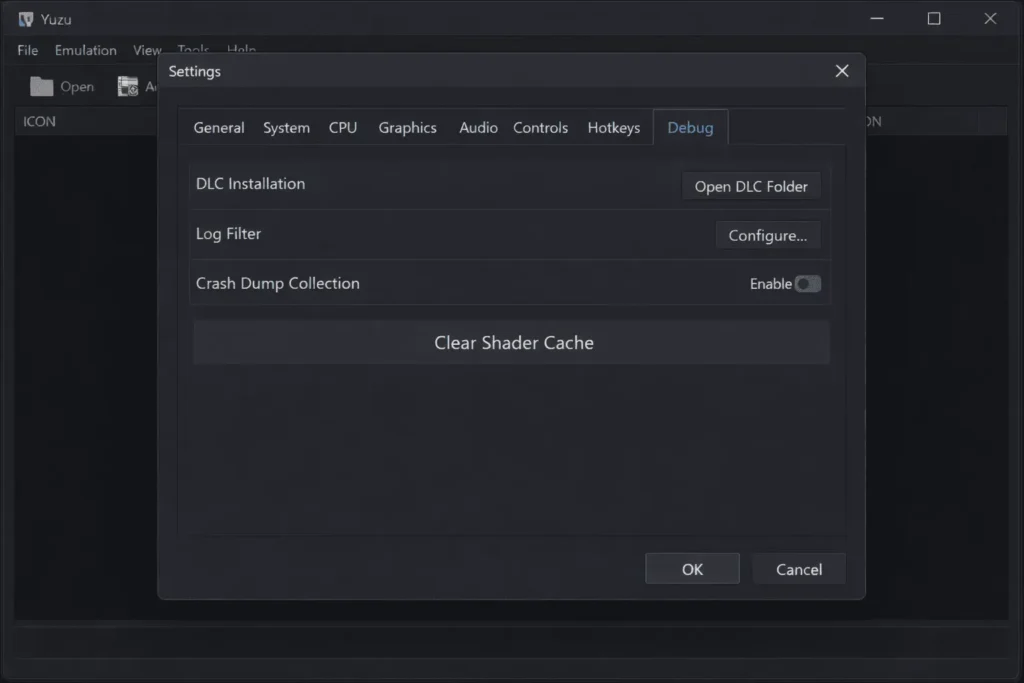
- Clear Shader Cache
- Switch Graphics Backend
- Check Game Directory Path
- Disable Antivirus Interference
- Restart After Major Changes
- How to Fix Yuzu Games Not Opening on Android
- Use Matching Emulator and Keys
- Grant Full Storage Permissions
- Close Background Apps
- Understand Game Limitations
- Yuzu Stuck on Launching After Update or Specific Games
- Update Firmware and prod.keys Together
- Clear Cache After Major Updates
- Game-Specific Compatibility Issues
- Verify Game Updates and DLC
- Frequently Asked Questions
- Final Checklist Before Launching Games
Why Yuzu Emulator Games Are Not Opening
Yuzu games failing to start usually happen because the emulator depends on strict compatibility rules. If any required file is missing or mismatched, the game will fail to launch. Unlike normal applications, Yuzu relies on external components such as firmware, prod.keys, and valid Nintendo Switch game dumps. Many users also worry about safety and legality issues. You can read a detailed guide on Is Yuzu emulator legal and safe before troubleshooting launch problems.
Many users believe that installing the emulator alone is enough to start playing. In reality, Yuzu cannot run games without the correct decryption keys and matching firmware versions. Even a small mismatch between these files can cause launch failures, black screens, or endless loading.
Updates also play a major role in launch issues. When users update Yuzu but forget to update the firmware or keys, the emulator enters an unstable state. This is why Yuzu launch problems often point to configuration problems rather than emulator bugs.
Hardware differences also affect game launching behavior. On Windows PC, outdated GPU drivers or incorrect backend settings can block games from starting. On Android devices, limited hardware support and Vulkan compatibility issues are common causes.
In most cases, these problems appear silently without clear error messages. This makes it important to understand the core reasons before applying fixes. Once the root cause is identified, most Yuzu not working issues can be resolved safely.
Common Reasons Behind Yuzu Not Working
When the Yuzu emulator is not working, it does not mean the emulator itself is broken. In most cases, the issue comes from incorrect setup or missing required files. Yuzu emulates Nintendo Switch system behavior, which means it depends on specific system components.
If even one required file is missing, outdated, or loaded incorrectly, games will fail to launch. Below are the most common reasons why Yuzu games fail to launch for many users.
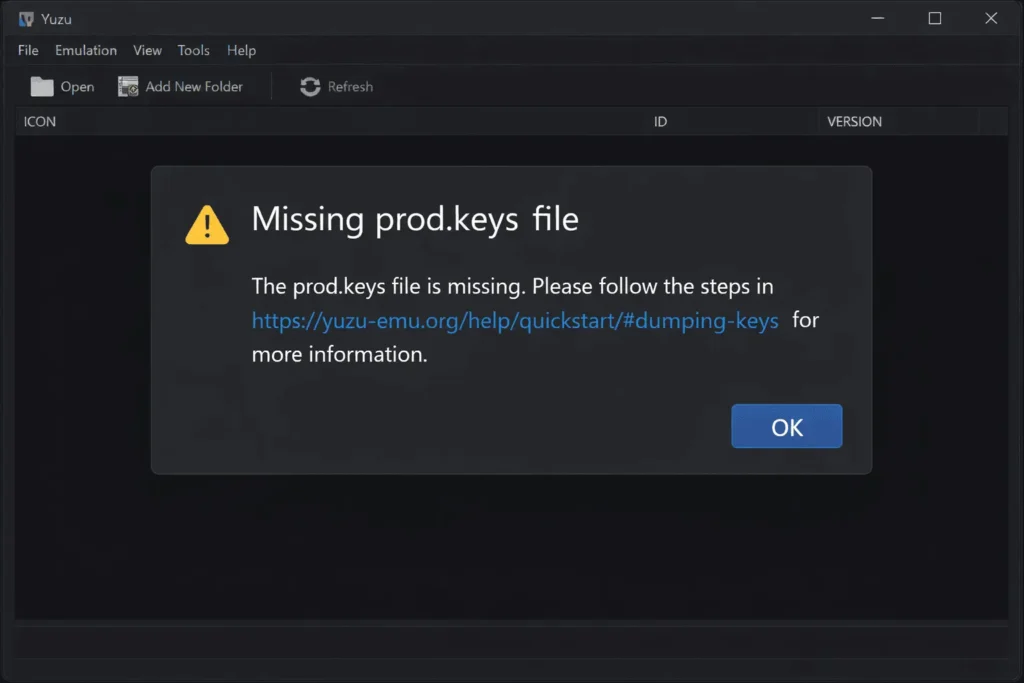
Missing or Outdated prod.keys
The most common reason Yuzu games fail to launch is missing or outdated prod.keys. Prod.keys are required to decrypt Nintendo Switch game files. Without valid keys, Yuzu cannot read or launch any game.
Each firmware update requires matching prod.keys.If you are using a newer firmware with older keys, games may get stuck on a black screen. This is why prod.keys and firmware versions must always match.
Even with correct keys, some titles may not launch due to limited support. Always verify your game from the Yuzu compatibility list before applying fixes.
Firmware Issues
Firmware files control core system functions inside the emulator. Without proper firmware, Yuzu cannot boot games correctly. Many users forget to install firmware or fail to update it after upgrading Yuzu.
If the firmware is corrupted or incomplete, the Yuzu emulator will not open games. Firmware and prod.keys should always be updated together. Updating only the emulator often leads to silent compatibility problems.
Update Files Loaded Incorrectly
Another common reason Yuzu games are not working is incorrect loading of update files. Some users install game updates as separate titles instead of merging them with the base game. This confuses the emulator and causes launch failures.
Game updates must always attach to the base game. If updates are loaded incorrectly, games may freeze on launch or crash instantly. Many users overlook this step, even though it causes frequent issues.
Bad or Incomplete Game Dump
Not all Nintendo Switch game files are clean or complete. A bad dump is a corrupted copy created during the dumping process. These files may appear normal, but fail when launching in Yuzu.
If a game freezes at the same point every time, the dump should be verified. This issue cannot be fixed through emulator settings. In such cases, re-dumping the game file is the only reliable solution.
Yuzu Black Screen Fix - All Types Covered
Black screen in Yuzu can mean different things. Identify your type first, then apply the right fix.
Black screen + audio playing
Game is running but graphics aren't rendering GPU/API issue
Black screen + no audio
Game failed to load at all keys, firmware, or file issue
Black screen then crash
Game starts but immediately crashes shader or RAM issue
Black screen for 30+ seconds then loads
Shader compilation normal behavior, just wait
- Yuzu → Emulation → Configure → Graphics
- Toggle between Vulkan and OpenGL
- Save settings → relaunch game
- NVIDIA: try Vulkan first | AMD: try both | Intel: use OpenGL
- Yuzu → Emulation → Configure → Graphics → Advanced
- Find ASTC Recompression setting
- If disabled → enable it | If enabled → disable it
- Relaunch game and test
- Check if black screen started after a Windows Update or driver update
- If yes → roll back GPU driver to previous version
- NVIDIA: DDU (Display Driver Uninstaller) → install older driver
- AMD: Adrenalin → check previous version history
- Right-click game in Yuzu list → Remove → Remove All Shader Caches
- Also → Remove → Remove All Pipeline Caches
- Relaunch — game will rebuild cache on first load
- Check game file size — compare with known correct size online
- Right-click game → Verify Integrity in Yuzu
- If failed → re-dump the game from your Switch
- Ensure file extension is .NSP or .XCI only
- Yuzu → Emulation → Configure → Graphics
- Uncheck Enable VSync
- Set Frame Limit to Unlimited temporarily
- Also try toggling Async GPU Emulation
- Test if black screen clears
How to fix Yuzu emulator games not opening on PC
When Yuzu games fail to launch on Windows, the issue is almost always related to drivers, graphics settings, or file configuration. Most launch problems appear after emulator updates or incomplete setup changes. Check each step below before reinstalling anything — small fixes resolve most cases without touching save data.
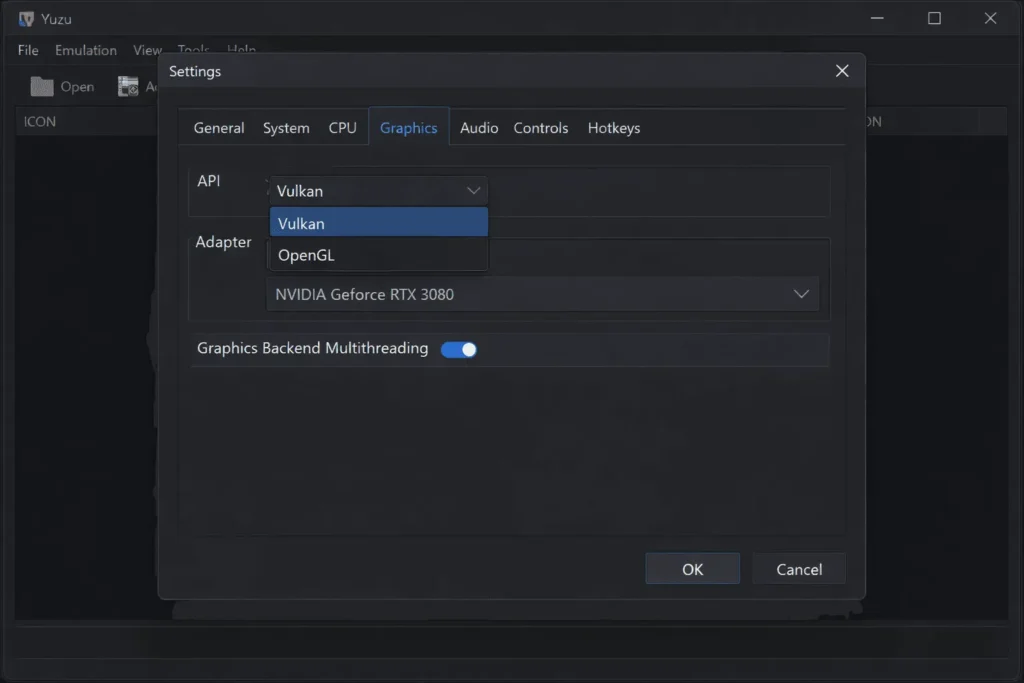
If games were working before and stopped after a Windows update, start with GPU drivers first. Windows updates frequently replace GPU drivers with generic versions that break Vulkan support in Yuzu.
Do not reinstall Yuzu as a first step. Reinstalling removes your configuration but rarely fixes launch issues caused by drivers, keys, or firmware mismatches. Always work through these steps first.
How to Fix Yuzu Games Not Opening on Android
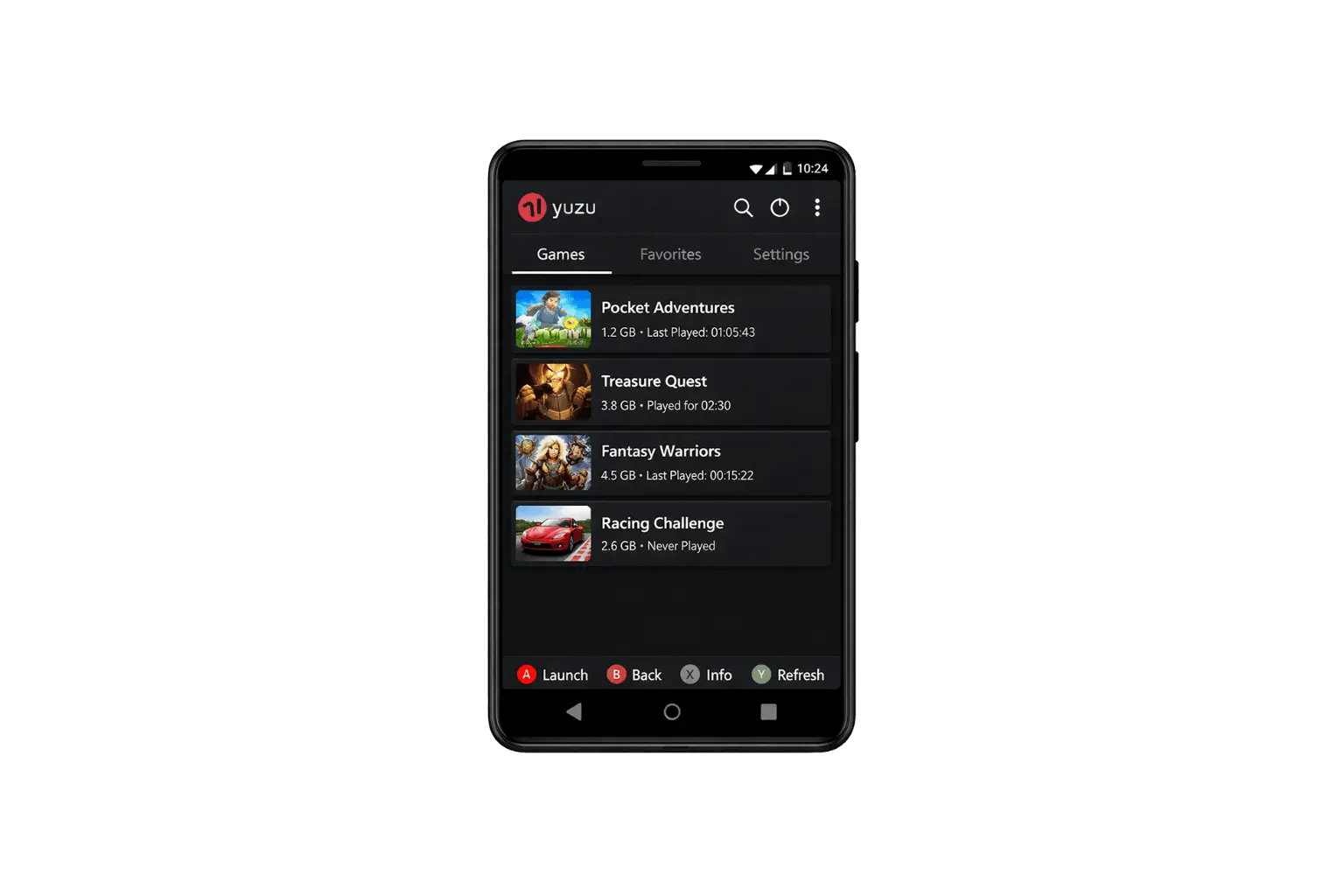
Yuzu Android (via Citron or forks) has stricter hardware requirements than PC. Here's how to fix games that won't open on your Android device.
| Requirement | Minimum | Recommended |
|---|---|---|
| Chipset | Snapdragon 870 | Snapdragon 8 Gen 2+ |
| RAM | 8 GB | 12 GB+ |
| Android Version | Android 10 | Android 12+ |
| Vulkan Support | Required | Required |
| Storage | Free 10 GB+ | Free 20 GB+ |
- Open your file manager on Android
- Navigate to:
Internal Storage → yuzu → keys - Place
prod.keysandtitle.keyshere - Restart the Yuzu app completely (clear from recents)
- Try launching the game again
yuzu folder doesn't exist, open the app once — it creates the folder structure automatically.- Open Yuzu Android → tap Settings (gear icon)
- Go to Graphics
- Set API to Vulkan (not OpenGL)
- Set Resolution to 1x (native) — higher res causes crashes on mid-range phones
- Disable Async Shader Compilation if enabled
- Go to Android Settings → Apps → Yuzu
- Tap Permissions
- Enable Storage / Files & Media → set to "Allow all"
- Also enable Photos & Videos permission
- Reopen Yuzu and try loading game
- Resolution Scale → 0.5x or 1x
- Disable Anisotropic Filtering
- Set GPU Accuracy to Normal (not High)
- Disable Use disk pipeline cache
- Enable Force maximum clocks (if available)
- Uninstall current Yuzu Android build
- Clear leftover data from Settings → Apps → Yuzu → Clear Data
- Download the latest stable APK (not a beta/nightly build)
- Install → set up keys → test with a lighter game first (e.g., Untitled Goose Game)

Yuzu Stuck on Launching - After Update or Specific Games
The "Launching..." screen freezing is one of the most reported Yuzu issues. It usually happens after a Yuzu update or with specific game titles. Here's exactly why it happens and how to fix it.
- Shader cache is outdated or corrupted after a Yuzu update
- New Yuzu version broke compatibility with existing pipeline cache
- Game-specific bug in the current Yuzu build
- Missing or wrong firmware version for the game
- GPU driver conflict with new Yuzu rendering changes
- Right-click the stuck game in Yuzu game list
- Click "Remove → Remove All Pipeline Caches"
- Also click "Remove → Remove All Shader Caches"
- Relaunch the game — first boot will be slower (rebuilding cache) but it will load
- Yuzu → Emulation → Configure → System
- Check current firmware version installed
- Some newer games require firmware 17.0+ to launch
- Update firmware if the game's required version is higher
- Retest launch after firmware update
- Yuzu → Emulation → Configure → CPU
- Disable Multicore CPU Emulation
- Set Accuracy to Auto
- Uncheck Memory Layout extended option
- Save and retry launch
- Yuzu → Emulation → Configure → Graphics
- If on Vulkan → switch to OpenGL and retry
- If on OpenGL → switch to Vulkan and retry
- Some games are only compatible with one specific API
- Note which Yuzu version broke the game
- Download the previous working build from Yuzu's GitHub releases
- Install older build (keep your existing keys/saves)
- Test if game launches on older version
- Right-click the game in Yuzu → Verify Integrity
- If verification fails → re-dump the game ROM
- Ensure game file is in .NSP or .XCI format (not .ZIP or .RAR)
- Check file isn't corrupted (partial download or bad dump)
Frequently Asked Questions
Why does Yuzu open but games do not start?
When Yuzu emulator games are not opening, it usually means required files are missing or mismatched. Prod.keys or firmware often do not match the current emulator version. Check both files before changing any graphics or performance settings. A version mismatch between prod.keys and firmware is the most common silent cause of this issue.
Why are Yuzu games detected but not launching?
Detection only confirms that Yuzu can see the game file. Launch failure happens during the decryption or boot phase. Bad game dumps, missing firmware, incorrectly loaded updates, or a corrupted shader cache are the most common causes. If the game appears in the list but never starts, check prod.keys and firmware versions first, then clear the shader cache.
Why do Yuzu games work on PC but not on Android?
Android devices have strict GPU and memory limitations. Many Nintendo Switch titles require more processing power and GPU memory than mobile hardware can provide. Yuzu on Android also has no OpenGL fallback, it depends entirely on Vulkan. If a game runs on PC but fails on Android, this is a platform hardware limitation and not a setup mistake.
Can antivirus software block Yuzu?
Yes, especially on Windows. Windows Defender and third-party antivirus tools can silently block Yuzu processes without showing any error message. This causes games to fail on launch with no clear indication of the cause. Add both the Yuzu executable and your game folder to the antivirus exclusion list and restart the emulator after making changes.
Should I reinstall Yuzu to fix launch issues?
Reinstalling Yuzu rarely fixes core launch problems. It only helps if the emulator executable files are corrupted. In most cases, launch failures are caused by prod.keys mismatches, outdated firmware, driver issues, or shader cache conflicts, none of which are fixed by reinstalling. Always back up your prod.keys and save files before reinstalling as a last resort.
Is Yuzu still usable in 2026?
Yuzu development was officially discontinued following a legal settlement with Nintendo in early 2024. The emulator itself still works for many Nintendo Switch titles, but it no longer receives updates, bug fixes, or compatibility improvements. Newer game releases may have limited or no support. If you are experiencing launch issues with newer titles, consider checking active alternatives like Ryujinx, Sudachi, or Citron which continue to receive updates.
What replaced Yuzu emulator?
Several open-source Nintendo Switch emulators have emerged as Yuzu alternatives. Sudachi and Citron are direct forks of Yuzu and maintain compatibility with most titles that Yuzu supported. Ryujinx is an independently developed emulator with strong compatibility and active updates. Each has different performance characteristics depending on your hardware. See our full Yuzu alternatives comparison to find the best fit for your setup.
Final checklist before launching games
Most Yuzu emulator games not opening issues come from small setup mistakes. Go through each item below before launching. Click each item to mark it complete.
✅ All checks passed!
Your setup looks correct. If the game still won't open, check Yuzu's compatibility list the issue may be game-specific.

